Working with appliance folders
Use Appliance folders to simplify and unify eyeSight device management and configuration tasks. These folders are especially useful for medium- and large-scale deployments.
Use Appliance folders to group devices into a tree structure, and to correlate Appliances with geographical or functional segments of the Internal Network. The Appliances in a folder handle endpoints in the Internal Network segments you assigned to the folder.
Define Appliance folders to:
- Efficiently support large or geographically disperse networks
- Implement automatic IP allocation between Appliances
- Create failover clusters (licensed feature. Refer to the Forescout eyeSight Resiliency and Recovery Solutions User Guide.
Use Forescout segments based on the Internal Network to assign IP addresses to folders or Appliances. Define these segments in the Segment Manager before you work with folder tools. For example, if your network expands, you typically:
- Install new Appliances
- Use the Segment Manager to define segments with your network's new IP addresses. See Working with Forescout Segments.
- Add these segments to the Internal Network. See Working with the Internal Network.
- Follow the procedures described in this section to define folders that contain the new Appliances, and to assign the new segments to Appliances.
The following general permissions are required to work with Appliance folders:
- CounterACT Configuration
- CounterACT Policy Management
To work with folder tree actions, the following additional permissions are required:
- Multiple CounterACT Appliance Management (update)
- CounterACT Appliance Control
Write permission is required to save changes.
To work with Appliance folders select Options> CounterACT Devices > IP Assignment and Failover.
The IP Assignment and Failover pane opens.
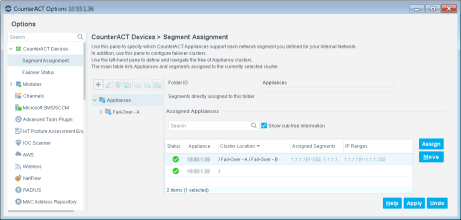
The tree of Appliance folders is shown in the left pane. If you have already defined Appliance folders, they appear in the tree. To modify the folder tree, select a node in the tree and perform one of the following actions:


The main pane lists the following information for each Appliance in the selected folder:
The following tools are available in this pane:
Static and automatic IP allocation
You can assign IP addresses to Appliances in two ways:
- Automatic IP Allocation: Assign segments to a folder. If the folder contains several Appliances, IPs in these segments are automatically assigned to available Appliances in the folder. Endpoint sessions are distributed proportionally based on each Appliance's licensed capacity.
-
Static Allocation: Assign segments to a single Appliance. This Appliance handles endpoints in these segments. If this Appliance is part of a folder, it does not participate in automatic IP allocation.
Note: IP addresses not assigned to a folder or Appliance are handled by the Enterprise Manager. The Enterprise Manager also handles IP addresses that are assigned to a folder that has no Appliances available.
Overlapping IP assignments
The Forescout eyeSight verifies that each network IP address is assigned to only one Appliance. This ensures, for example, accurate endpoint monitoring and policy execution.
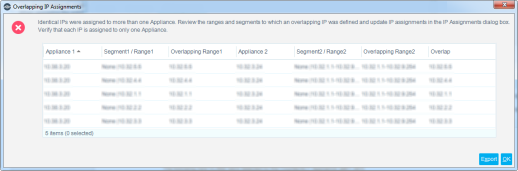
If you mistakenly assign an IP address to more than one Appliance, the Console displays a table that lists the ranges and segments to which the overlapping IP address was defined, as well as the exact IP address ranges that overlap. Review this information and update IP assignments in the IP Assignment dialog box so that each IP address is only assigned to one Appliance. You can export the information in the table to a CSV file.
Networks can be intentionally configured with overlapping IP addresses, as in retail branches, Operational Technology environments, or merged corporate networks. You can enable support for these networks in the Internal Network. For more information refer to the Working with Overlapping IP Addresses How-to Guide.
Conflicting configurations
When you configure Forescout modules and other components, you can define groups of Appliances that have the same configuration settings, as described in Configure Features for an Appliance or Group of Appliances.
In some cases, these configuration settings may conflict with the Appliance groupings you define in the Appliance Folders tree. For example, endpoint connection settings of the Endpoint Module may conflict with endpoint-handling settings of the Appliance Folders tree. A pop-up message notifies you of any conflicts when you save your Appliance Folders configuration. Review the two configurations applied to the Appliance to identify and resolve the conflict.
 minute read