Additional Forescout eyeSight options
Work with the Forescout eyeSight internal network
The Internal Network is a set of network segments or IP ranges that defines your network in the eyeSight. When eyeSight detects endpoints with IP addresses within the Internal Network, they are assumed to be in your network.
The Internal Network defines the extent of eyeSight management activity. For example, when a Forescout policy scope is defined as "All IPs," the policy is applied to all IP addresses in the Internal Network. Network segments that are part of your physical network, but are not included in the Internal Network definition, are not managed by Forescout products. In addition, endpoints in the Internal Network must be visible to Forescout Appliances.
During installation, the Internal Network is defined when you run the Initial Setup Wizard. See Initial Setup Wizard - Internal Network for details.
Administrators with appropriate permissions can use the Segment Manager tool to edit the segment definitions that define the Internal Network. See Working with Forescout Segments and Managing Users, Access to Console Tools - On-premises Permissions. For example, if your network expands, you typically:
- Use Segment Manager to define segments with your network's new IP addresses.
- Use the procedure described in this section to add these segments to the Internal Network
Several eyeSight tools use the segments that define the Internal Network. For example, you use these segments to assign sectors of your network to Appliances, to define the scope of a policy, and to define the active response range for Threat Protection features.
To configure the Internal Network, select .
The main table lists segments that are part of the internal network.
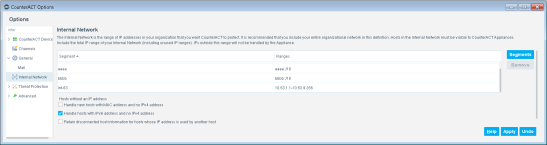
The following options are available.
To add segments to the internal network, select Segments. The full tree of segments defined in Segment Manager is shown.
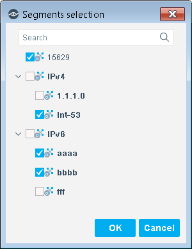
Select and clear checkboxes to specify the segments that make up the Internal Network. Only the selected segments are included in the Internal Network. Select OK and the main table reflects any changes.
Work with hosts without IPv4 addresses
Optional settings let the eyeSight detect and manage endpoints based on their MAC or IPv6 address when an IPv4 address is not available.
This option is useful, for example:
- When a rogue device without an IP address is discovered by the network switch.
- When an IP address is discovered after the MAC address.
- If you want to create a white list of MAC addresses allowed to access your network. Create the white lists and then add them to policies. See Defining and Managing Lists for details.
- To detect IPv6-only endpoints in an IPv6 enabled environment.
Devices with no known IP addresses are presented in the Console with Layer 2 information only, i.e., information related to the switch at which the endpoint is connected. When the IP address is discovered, and is part of the Internal Network, comprehensive endpoint information is displayed, along with the discovered IP address. If an IP address is later discovered, but that address is not in the Internal Network, the endpoint is still displayed in the Console with Layer 2 information.
Not all host properties and actions are supported when only the MAC address is known for an endpoint. The following properties and actions can be performed on endpoints detected without an IP address:
- NIC vendor property
- All Switch properties
Manage Actions:
- Add to Group
- Add Value to List
- Recheck Host
- Set Device Criticality
- Delete Host
- Delete Properties
Audit Actions
- Send Message to Syslog
Notify Actions:
- Send Email
Restrict Actions:
- Switch Block
- Assign to VLAN
- 802.1X Plugin actions
- Wireless Plugin actions
Work with hosts whose IPv4 address Is used by another host
The eyeSight can retain host information on hosts that had an IPv4 address within the Internal Network but currently do not have one because another host obtained it. For example, if you are working with guest hosts that frequently log in and out of the network.
Selecting this option retains previous authentication events on these hosts, and (depending on the relevant policy) does not require them to authenticate when they reconnect.
Sign Forescout eyeSight emails with an S/MIME certificate
You can sign emails sent by the eyeSight using a digital certificate, as specified by the Secure/Multipurpose Internet Mail Extensions (S/MIME) standard.
Generate CSRs and import signed certificates
Use the Certificates pane to generate Certificate Signing Requests (CSRs) that are submitted to a Certificate Authority (CA). After the CA returns a signed certificate, use the Certificates pane to import the certificate.
After a signed S/MIME certificate is imported into Enterprise Manager, you can enable digital signing of email messages. For detailed information about defining and provisioning certificates, see The Certificates pane .
When you generate a CSR:
- In the Used for and Key Usage fields of the CSR wizard, specify that the certificate will be used for email signing.
- In the Email Address field, specify the email address of the Enterprise Manager that applies the digital signature to emails. When you install the signed certificate on the Enterprise Manager, emails are sent with this certificate and the email address configured in the certificate appears in the From field of the emails. The address should be meaningful, so that users can recognize that it comes from the Enterprise Manager.
Work with digitally signed emails in the Forescout eyeSight
When digital signatures are enabled, all emails sent by the eyeSight are signed using the S/MIME certificate. The body of the email is sent as clear text.
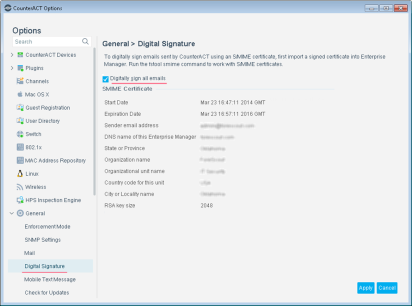
To work with digitally signed emails, select . The tab shows data fields for the current signed certificate. Verify the certificate, then configure the following field. Restart the User Directory plugin to implement configuration changes.
Digitally sign all emails
When you enable this option, all emails sent by the eyeSight are signed using the S/MIME certificate. The body of the email is not encrypted. Restart the User Directory plugin if you change this setting.
When this feature is enabled, the Enterprise Manager applies the digital signature to emails. Because of this, emails normally sent directly by the Appliance are routed through the Enterprise Manager.
Forescout eyeSight endpoint discovery rules
By default, eyeSight automatically discovers information about endpoints, such as MAC addresses and NetBIOS names. This is referred to as endpoint property information.
Properties that are automatically discovered appear in the Home view, Detections pane, the Assets Portal and Reports.
By default, the following properties are discovered:
- Domain User names
- NetBIOS host names
- MAC Addresses
- DNS names
- Device Interfaces
- Basic User Directory Plugin properties. This plugin is bundled with the eyeSight.
- Switch Plugin properties This plugin is bundled with the eyeSight.
Additional properties may also be discovered by default, depending on the plugins installed. For example, if you installed the VPN Concentrator Plugin, related VPN properties are discovered.
You can use the Host Discovery feature to control properties automatically learned. You may need to do this to:
- Expand the information discovered at your network
- Limit the information discovered at your network
- Discover properties at specific network segments
- Discover properties at specific times or under specific conditions
Expand or limit the information discovered by default
You can update the default to include additional information, such as, properties that are only available via the policy (Nmap details) or properties that are discovered via plugins. See Base Modules, Content Modules, and (Undefined variable: product-names.eyeExtend) Modules and Policy Management for details.
Under certain circumstances, you may want to prevent discovery tasks on endpoints, where the information is not needed. You can use the host discovery wizard to perform this task as well.
Certain properties are learned regardless of the limitations defined in the Host Discovery tool, including:
- Properties learned passively by eyeSight, such as admission events, MAC addresses, NetBIOS domain and host names, or open ports.
- Properties listed in policies.
- Properties displayed in Detections pane columns.
Set the Forescout eyeSight enforcement mode
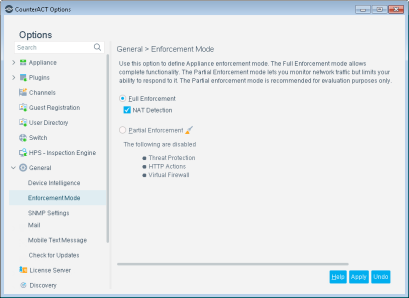
You can choose to set up your system to work with either full enforcement or partial enforcement. The Full Enforcement mode allows for complete functionality, while the Partial Enforcement mode allows you to monitor network traffic but limits your ability to respond to it. Specifically, the Threat Protection, HTTP Actions, and Virtual Firewall options are turned off.
The Partial Enforcement icon  is displayed on the status bar if your system is set to this mode.
The icon on the status bar may indicate that the eyeSight is running in Forced Partial Enforcement mode. This indicates there might be connectivity problems between the eyeSight and the network.
To set the Enforcement mode, select Tools > Options > General > Enforcement Mode and configure the following settings:
Backing up Forescout eyeSight system and component settings
Backup and restore procedures let you save Forescout device system or component settings and scheduled or saved reports. You can later restore them to the eyeSight device. This feature should be used in case of Forescout device hard drive failure or when data is lost for any other reason.
Endpoint events and your site structure (real and virtual endpoints) are not saved. The impact of losing this information is minimal, as the tool should be used in cases of hard drive failures and not to store endpoint and site information.
You can schedule automatic backups of eyeSight system or component settings to a remote server, via FTP, SFTP, or SCP. Using scheduled backups provides extra safety and protection against hard drive failures and data loss.
If you are logged in to the Forescout Console via an Enterprise Manager, the Enterprise Manager and all registered Appliances are backed up to individual files.
You must first configure a backup server and an encryption password.
Forescout eyeSight system backups
The system backup feature saves all eyeSight device and settings. This data includes the following:
- Configuration
- License
- Operating System configuration
- Plugins/Modules
These categories include, for example:
Forescout eyeSight component backups
Component Backup is supported for the following components:
- Switch Plugin, Version 8.7.0 and above. When importing a backed-up Switch Plugin configuration (export_switch.xml), only those switch configurations that are both present in the export_switch.xml file and not listed in the Switch pane of the Console (Options > Switch) are imported. This is based on a comparison of switch IP addresses. Ensure the import of the complete Switch Plugin configuration backup by removing all configuration entries from the Switch pane, before performing the import.
- The Component Backup does not include the ACL Inventory in its backup of the Switch Plugin configuration.
- Wireless Plugin, Version 1.4.0 and above.
- Policies. Using the policy backup feature saves all policy-related data, including segment, condition and action information for each policy's rules and sub-rules. Policies are restored using the Policy import process. You cannot import a policy that has the same name as an existing policy. You must change the name of one of the policies for the import to succeed. You will be asked to enter the Encryption Password upon import.
Recover an Enterprise Manager
A eyeSight remote recovery tool offers a complete recovery system for restoring an Enterprise Manager that is no longer operational. This feature allows for the full management of Appliances from a remote Recovery Enterprise Manager after a failure.
Recovery Enterprise Manager sync status
You can monitor sync status and data synchronization between Enterprise Manager (EM) and Recovery Enterprise Manager (Recovery EM).
There are three different Recovery sync statuses:
- In sync (Normal)
- Out of sync (Warning)
- Out of sync (Error)
A timestamp is available next to each status to indicate when the systems were last in or out of sync. The EM sends a Syslog message when its status changes.
To view your Recovery EM sync status on the Forescout Console:
1. Go to Tools > Options > CounterACT devices > Recovery Enterprise Manager
To check your Recovery EM sync status via CLI, use fstool rem sync_status. See the Forescout CLI Reference Guide for more information.
Display endpoint information in a local language
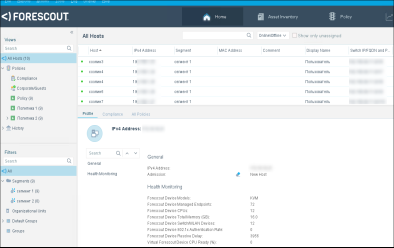
An extensive range of endpoint information can be displayed in other language character sets, such as user and host names, registry key information, file paths, and processes. This information is displayed in the required languages in the Console Detections pane, Details pane, Assets Portal, and in reports

Display NetBIOS names and NetBIOS domains
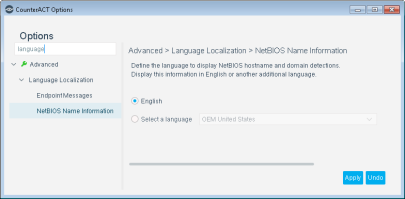
The Console can display Microsoft Windows NetBIOS Names and NetBIOS Domains in a foreign language. The eyeSight resolves in the selected language and in English if both languages are detected.
Select , and then select a language or language set.
Pre-registration and guest registration management
You may need to provide limited network and Internet access to company visitors, such as contractors, visiting professionals, and other network guests. You can use the HTTP Login action to detect, register and control network guests. Approved guest information is displayed in the Guest Management Portal and in the Guest Management Pane. In addition, you can manually add guests there and later verify that they are authenticated using the action.
Guest requests for access to your corporate network are generated when the HTTP Login action is manually applied to a detected endpoint or applied during a Forescout Corporate/Guest Control policy evaluation of detected endpoints.
 minute read