Manage Forescout Licenses
Learn how to manage Forescout licenses, including activation, deactivation, revocation, and conversion from perpetual to subscription.
Overview
Forescout licenses control access to product features and endpoint capacity. You can manage licenses through the Forescout License Portal and Console.
This section covers:
- Activate a Forescout License: Add and enable licenses for your deployment.
- Update an Existing License File in the Forescout Console: Refresh your license file in the Console after renewal or changes.
- Upload License Requests and Download License Files: Submit a license request and retrieve the updated license file from the portal.
- Deactivate or Revoke a Forescout License: Remove or revoke licenses when they are no longer needed.
- Convert a License: Change a perpetual license to a subscription license.
- Receiving License Alerts: Set up notifications regarding your license expirations.
Important Notes
- You cannot mix perpetual and subscription licenses in the same deployment.
- All products in a deployment must use the same license type.
- License status in the customer portal changes based on your last action. For example, if you deactivate a deployment ID, it stays deactivated until you reactivate it.
- License expiration dates are set by your most recent order transaction, such as a purchase or renewal. These dates don't change when you take actions in the portal.
- The Forescout Console shows license status and expiration dates from the portal.
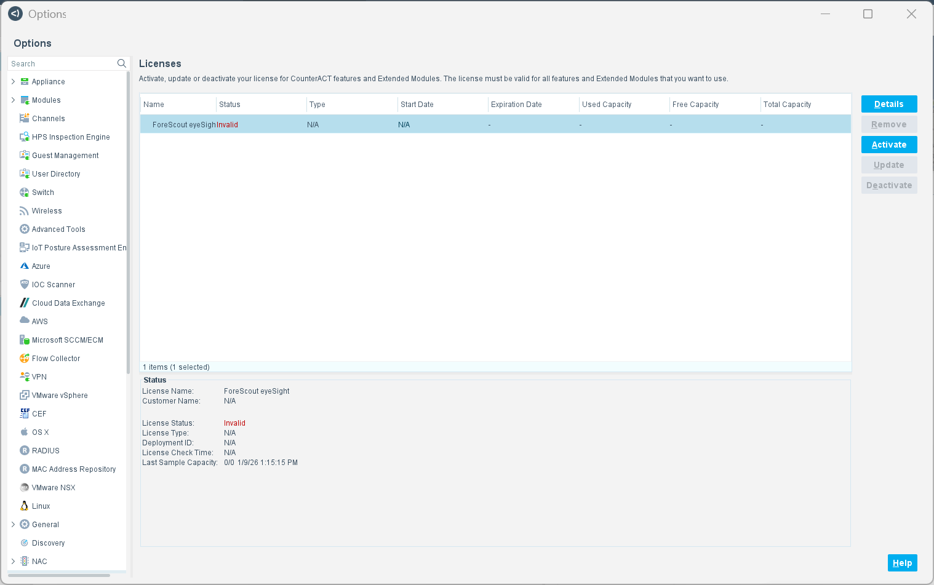
In the Licenses pane, you can view details such as name,
status, type, start and expiration dates, and capacity (used, free, and
total).
Related Topics
See the following topics for detailed instructions:
 minute read